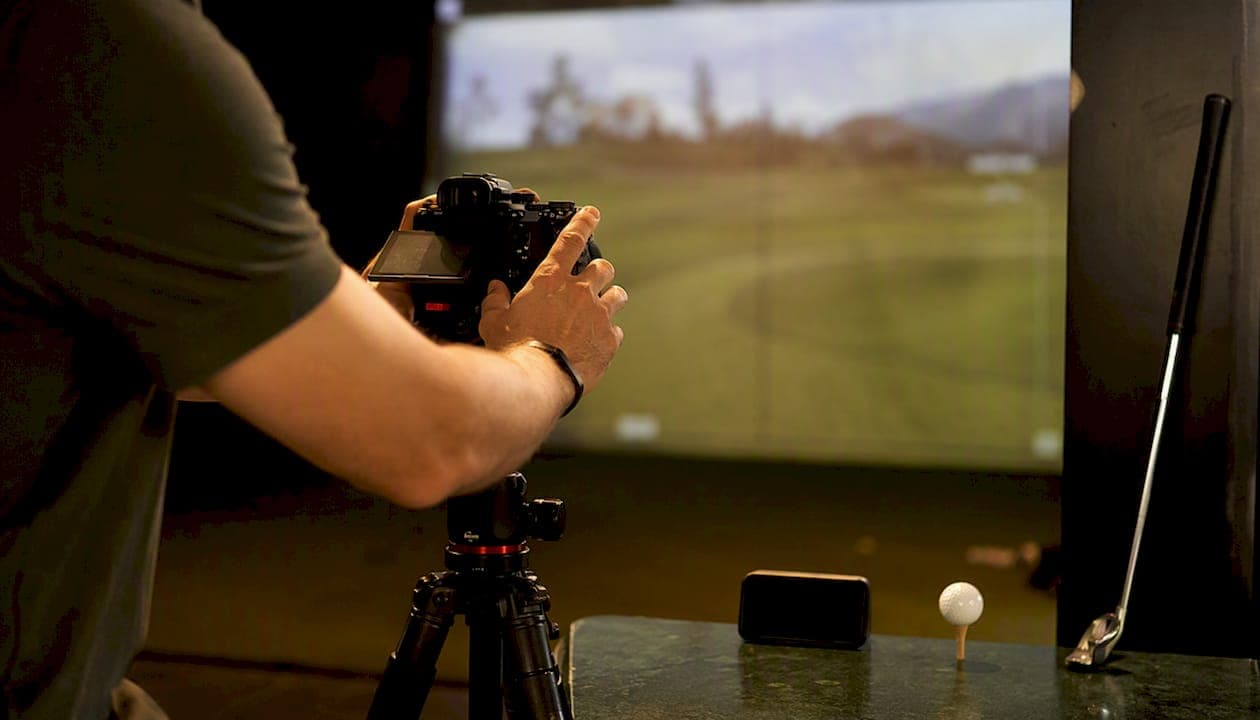
Capture your simulator hole in one picture by triggering the replay, taking a screenshot or exporting the clip, and immediately exporting the matching shot record as a CSV or JSON file. Then import both into Sim2coursecaddie to link the image to verified shot data.
The three-step workflow:
- Trigger auto-replay or hit your capture key (OBS, Kinovea, or your simulator's built-in replay) the moment the shot registers
- Export the session or individual shot record to CSV/JSON before closing the session
- Name the file with a timestamp and shot ID, then import both artifacts into Sim2coursecaddie
That's the whole thing. Everything below explains how to do each step cleanly and what to do when something goes wrong.
Key Takeaways
A verified simulator hole in one picture requires three artifacts: the replay image or clip, the matching CSV/JSON shot export, and a consistent filename that ties both together by timestamp and shot ID.
| Point | Details |
|---|---|
| Export immediately | Lock or save your circular buffer within 90 seconds to prevent overwrite. |
| Match fps to projector Hz | Use a whole-number multiple (e.g., 120fps with 60Hz) to eliminate flicker in replay frames. |
| Link by shot ID and timestamp | Embed the shot ID in the filename and verify the timestamp matches the shot log within 5 seconds. |
| Archive as a bundle | Store media, CSV/JSON, and checksums together in a dated session folder for long-term auditability. |
| Sim2coursecaddie for analysis | Import the shot export and attach media to run 3D replay, dispersion, and club-gap reports on the free tier. |
Table of Contents
- What's the fastest way to capture a hole in one picture?
- What camera settings produce the clearest hole in one replay image?
- How do you export and name simulator screenshots and clips?
- How do you link a simulator image to its shot data and verify authenticity?
- How do you analyze a hole in one replay inside Sim2coursecaddie?
- How do you annotate and export a shareable hole in one clip?
- How should you store and back up hole in one pictures long-term?
- What do you do when the hole in one image or shot data is missing?
- Why linked shot data turns a hole in one into a training asset
- Sim2coursecaddie maps directly to every step of this workflow
- Sources
What's the fastest way to capture a hole in one picture?
Run this checklist within 90 seconds of the shot registering. Speed matters because circular-buffer systems overwrite old footage continuously.
- Trigger the replay immediately. In OBS, press your instant-replay hotkey. In Kinovea, hit the capture save shortcut. If your simulator has a built-in replay button, press it before advancing to the next hole.
- Screenshot the replay frame. Use your OS screenshot tool or your simulator's export-still function. Capture the moment of impact and the ball-flight arc.
- Export the shot record. Go to your simulator's session or shot log and export to CSV or JSON. GST documents how to export merged videos with per-shot offsets and filename prefixes that match clips to shot records.
- Name and save both files using the convention in Section 4 before closing the session.
- Import into Sim2coursecaddie. Upload the CSV/JSON and attach the image or clip to the matching shot entry.
Pro Tip: After any exceptional shot, immediately lock or export your circular buffer. ProMirrorGolf's session management uses circular-buffer video saving for instant replay, and that buffer will overwrite your clip if you don't act fast.
What camera settings produce the clearest hole in one replay image?
Getting a clean still from a simulator replay depends on three things: camera sensor type, frame rate, and room lighting.
Required inputs:
- A launch monitor or simulator with shot logging (FlightScope Mevo+, for example, logs per-shot data locally)
- A dedicated swing or impact camera, or a phone mounted at a fixed angle
- A capture method: OBS with an instant-replay plugin, Kinovea, or your simulator's native replay
Camera settings that matter:
Matching your camera's frame rate to a whole-number multiple of the projector's refresh rate eliminates rolling color bands. A 60Hz projector pairs with 60fps, 120fps, or 240fps. Mismatched rates produce horizontal flicker bands that make still frames unusable.
Global-shutter cameras are preferable to rolling-shutter models for impact frames. Home Performance Lab recommends checking whether your launch monitor already provides native swing video before buying a separate camera, and using Kinovea or OpenGolfSim as companion tools when it doesn't.
Lighting: Use flicker-free LED panels or daylight-balanced bulbs. Avoid fluorescent fixtures, which pulse at 60Hz and compound the projector interference problem.
Pro Tip: After a memorable session, increase your OBS instant-replay buffer duration before you start. GolfSimBuilder's OBS guide covers replay duration, load delay, and speed settings so you can pull slow-motion clips without re-recording.
How do you export and name simulator screenshots and clips?
File format and naming discipline are what separate a recoverable archive from a folder of mystery screenshots.
Formats to use:
- Stills: PNG for lossless quality; JPEG at 90%+ quality if storage is tight
- Clips: MP4 (H.264 or HEVC) at the highest bitrate your storage allows; keep one unedited master copy before any editing
Export steps (generalized across common tools):
- In OBS, press the instant-replay save hotkey to write the buffer to disk. Set the output folder in OBS settings before your session.
- In Kinovea, use File > Export Video and choose MP4. Select the clip boundaries around the shot.
- In your simulator's interface, find Export Shot or Export Session and select CSV or JSON. GST's filename-prefix system lets you copy a prefix that ties the video file to the exact shot record.
- Rename both files immediately using this pattern:
YYYY-MM-DD_HH-MM_H[hole]_shot[ID]— for example,2026-07-06_18-12_H9_shot1234.pngand2026-07-06_18-12_H9_shot1234.csv.
Naming conventions to follow:
- Date first (ISO 8601 format) so files sort chronologically
- Hole number and shot ID together so media and data files share an identical prefix
- Avoid spaces; use underscores
Save OBS output presets (resolution, codec, container) so you don't reconfigure before every session.
How do you link a simulator image to its shot data and verify authenticity?
A hole in one picture is only as credible as its connection to the underlying shot record. Linking them correctly takes about two minutes.
Pairing methods:
- Timestamp match: The file's creation timestamp should fall within a few seconds of the shot's logged time in the CSV/JSON. Check both before closing the session.
- Shot ID field: Most simulator exports include a per-shot ID. Embed that ID in the filename and in any metadata field your archiving tool supports.
- Session ID + per-shot offset: GST's export workflow uses per-shot offsets within a session file, so you can locate the exact frame in a merged video using the session ID plus the offset value.
Validation checklist:
- Confirm the timestamp in the media file matches the shot log entry (within a 5-second window)
- Verify club, carry distance, and ball speed in the shot record match what the replay visually shows
- Check that the ball-flight trajectory in the replay is consistent with the logged launch angle and spin
- Keep the original unedited CSV/JSON export alongside the media file
Pro Tip: Generate an MD5 or SHA-256 checksum of your original export bundle immediately after saving. Store the hash in a text file in the same folder. If anyone questions the file's authenticity later, the hash proves it hasn't been altered.
Common pitfalls: Time zone mismatches between your capture PC and simulator software will shift timestamps by hours. Set both devices to the same time zone and sync to an NTP server. Clock drift between a phone camera and a PC can also offset timestamps by several seconds over a long session.
How do you analyze a hole in one replay inside Sim2coursecaddie?
Once the media and shot data are linked, the analysis work begins. Sim2coursecaddie's free analytics tier supports CSV/JSON import, media attachment, 3D replay, and report building.
Import and link workflow:
- Open Sim2coursecaddie and go to the import screen
- Upload the CSV or JSON shot export from your session
- Attach the screenshot or video clip to the matching shot entry using the shot ID or timestamp
- Generate the merged session view
Most useful visualizations for a hole in one:
| Report | What to look for |
|---|---|
| 3D flight replay | Confirm ball-flight shape, apex, and landing point |
| Top-down dispersion | See how the hole-in-one compares to your typical miss pattern |
| Carry vs. expected | Verify the carry matches your club's historical average |
| Club gap table | Check whether the club selection was optimal for the distance |
| Session trend overlay | Compare this shot's metrics to your last 20 rounds with that club |
For coaching or contest records, export a PDF report that includes the screenshot, the shot metrics table, and a short narrative note. Data visualization best practices suggest showing both the visual replay and the raw numbers side by side so the context is unambiguous. Annotate the key frames before exporting.
How do you annotate and export a shareable hole in one clip?
A raw simulator clip is useful for analysis. A trimmed, annotated version is what you actually want to share.
Annotation steps:
- Trim the clip to 3–5 seconds before and after impact
- Apply slow motion at 25–50% speed around the impact frame
- Overlay HUD data: club name, carry distance, ball speed, and launch angle
- Add an arrow or marker pointing to the ball at impact
- Include a caption with the hole number, date, and course name
Export presets by use case:
- Social sharing: 1080p, H.264, 8–12 Mbps, 30fps, under 60 seconds. Square or vertical crop for Instagram/TikTok.
- Coaching review: 1080p or 4K, H.264 or HEVC, 20+ Mbps, 60fps, full-length clip with HUD overlay intact.
- Archive master: Original resolution and bitrate, unedited, no overlays. Keep this copy separate from any shared version.
Before sharing publicly:
- Remove any personal data visible in the HUD (account names, home address fields)
- Add a watermark or credit line if the clip will be posted publicly
- Confirm the shot data file is not embedded in the video metadata if privacy matters
How should you store and back up hole in one pictures long-term?
A folder structure that keeps media and data together makes retrieval straightforward months later.
Recommended folder structure:
/golf-archive/
  /2026-07-06_H9_hole-in-one/
    /media/         ← screenshots, clips
    /data/          ← CSV, JSON exports
    /checksums/     ← hash files
    session-log.txt ← notes, shot IDs, import status
Tagging in Sim2coursecaddie: Tag each imported shot with club, hole number, course name, shot type (full swing, punch, etc.), and event name. Tags make it possible to filter across sessions and pull every hole-in-one attempt in a single query. Multi-session tracking becomes far more useful when tags are consistent from the start.
Backup checklist:
- Local copy on your primary machine
- Cloud backup with versioning enabled (Google Drive, iCloud, or Backblaze)
- Store original CSV/JSON exports, not just the imported copies
- Keep checksums alongside originals so you can verify integrity after a restore
Long-term shot data tracking gains real analytical value when individual milestone events like a hole in one are preserved with full context rather than just a screenshot.
What do you do when the hole in one image or shot data is missing?
Work through these steps in order before assuming the data is gone.
- Check the circular buffer. Most capture tools write to a rolling buffer. If you didn't save immediately, the clip may still be in the buffer folder or a temp directory.
- Look in alternate device folders. If a phone was recording, check its camera roll and any auto-upload folders.
- Check the simulator's recent sessions list. Many simulators keep a session log even after the app closes. Export the session again from there.
- Re-export the session. If the shot record exists but the media is gone, re-export the CSV/JSON and note the missing media in the session log.
Quick fixes for mismatched data:
- If timestamps differ by a fixed offset, adjust by that offset and re-match manually
- If the shot ID is missing, match by club and carry distance against the session log
- Merge duplicate shot entries by comparing all metric fields and keeping the one with the most complete data
For corrupted media: Extract still frames from the corrupted clip using FFmpeg or VLC before discarding it. Even a degraded frame is better than nothing for a contest record. Keep the corrupted original as proof of the original capture event.
If none of these steps recover the data, export the raw CSV/JSON and the session log and contact your simulator's support team with the shot IDs included.
Why linked shot data turns a hole in one into a training asset
Most golfers treat a hole in one as a trophy moment and move on. That's a missed opportunity. A verified simulator hole in one picture tied to its shot record is actually one of the most useful data points you'll ever generate, because it shows exactly what a perfect outcome looks like from your swing.
The carry distance, launch angle, spin rate, and club selection on that shot are a benchmark. Every subsequent attempt at that distance can be measured against it. Without the linked data, you have a picture. With it, you have a repeatable reference point.
Sim2coursecaddie's import and 3D replay tools make that reference point accessible across sessions. You can pull the shot up months later, overlay it against your current dispersion pattern, and see whether your swing has drifted or improved. That's the difference between a golfing milestone picture and a coaching tool.
The habit that matters most is immediate export. The capture workflow is only useful if you run it every time, not just when you remember. Build the export step into your session-close routine the same way you'd clean your clubs before putting them away.
Sim2coursecaddie maps directly to every step of this workflow
Your hole in one picture is only as useful as the system you use to store and analyze it. Sim2coursecaddie handles the full chain: import your CSV or JSON shot export, attach the screenshot or clip, run the 3D replay, and generate a shareable PDF report with the shot metrics embedded.
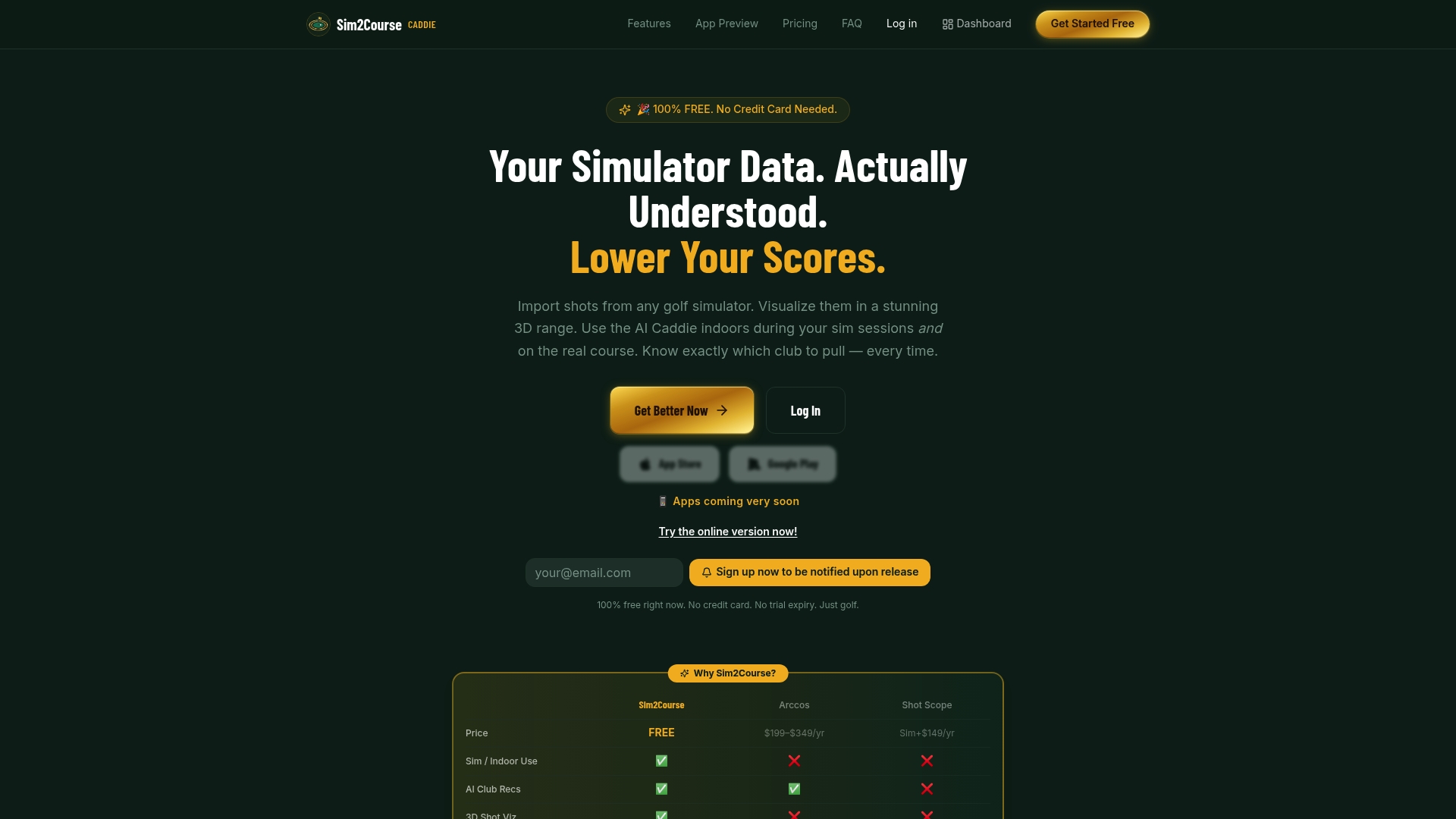
The free analytics tier gives you CSV/JSON import, media attachment, 3D shot visualization, tagging, and report building at no cost. No hardware required, no subscription needed to get started. The Pro plan ($1/month or $9.99/year) adds live GPS caddie and real-time club recommendations for on-course use.
If you've just hit a hole in one on your simulator, the next step is straightforward: export your session now, then import it into Sim2coursecaddie to validate the shot and run the 3D replay before the session data ages.
Sources
- How to Video: Record Your Golf Swings while Minimizing Flickering | BenQ US
- alonsom3/ProMirrorGolf
- Best Golf Swing Camera for Your Home Simulator (2026) - Home Performance Lab